Get the latest tips, trends and inspiration delivered weekly to your email.
Latest Posts
See All
From Script to Sound: Navigating the Landscape of...
Welcome to the voice evolution, where your words leap off the page and into the ears of the digital realm! Today, we're diving into the world of...

How to Change the Sample Rate of Your Audio
Learn how to easily change the sample rate of your audio in Quicktime Pro, Final Cut Pro, Adobe Premiere Pro and Sony Vegas Pro.

What Are The Top 10 Jingles of the 2000s?
The top commercial jingles of the 2000s can teach us something even to this day. Their commonalities make them successful and memorable.

Automotive Commercial Sample Scripts
Rev your voice over skills with these automotive commercial scripts, showcasing a battery-powered automaker, a used car dealership and more.

Travel Commercial Sample Scripts
Are you looking to create a radio ad for your travel business? These travel commercial scripts can help guide to and inspire you.

The Best TV Commercials from the 2000s
TV commercials in the 2000s promoted brands that would help the global financial crisis. Here, we review the best commercials of the 2000s.

How to Do Accents: Advice From a Dialect Coach
The voice over industry is filled with actors who can perform a multitude of accents. Learn how to do accents with dialect coach Sammi Grant.
Featured Posts

Harnessing the Power of Datasets in Voice Technology
In this piece, we delve deeper into the world of datasets in voice technology, exploring their crucial role.

Here Are Your 2024 Voicey Award Winners
Here are your 2024 Voicey Award winners in 16 categories, including Best Female Voice Actor and Best Male Voice Actor.

Who is the Voice of Joy in Inside Out
Who was cast to play the role of the always optimistic Joy? Keep reading to learn who is the voice of Joy in 'Inside Out' from Pixar.

How To Do a Voice Over on PowerPoint
If you want to learn how to add a voice over to your next PowerPoint presentation, we’re here to help. Follow this blog's seven easy steps.
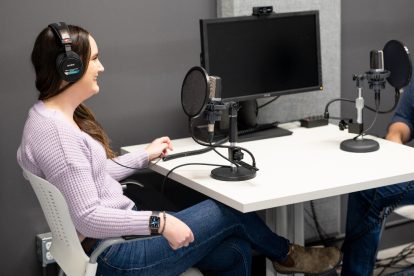
Voice Over Gold: Capturing Sound Bites That Sell
In this blog post, we'll delve into the secrets of creating interview gold, uncovering the strategies and techniques to help you shine on Voices.

Voice Acting, Voice Tech and Datasets: A Q&A with...
Learn about datasets, voice technology and how it impacts voice acting from Dheeraj Jalali, the Chief Technology Officer at Voices.